Passkeys Explained for Small Teams
Passkeys replace a typed secret with a key held on your device, unlocked by your fingerprint, face or PIN. What they are, why they resist phishing, and how a small team can roll them out.
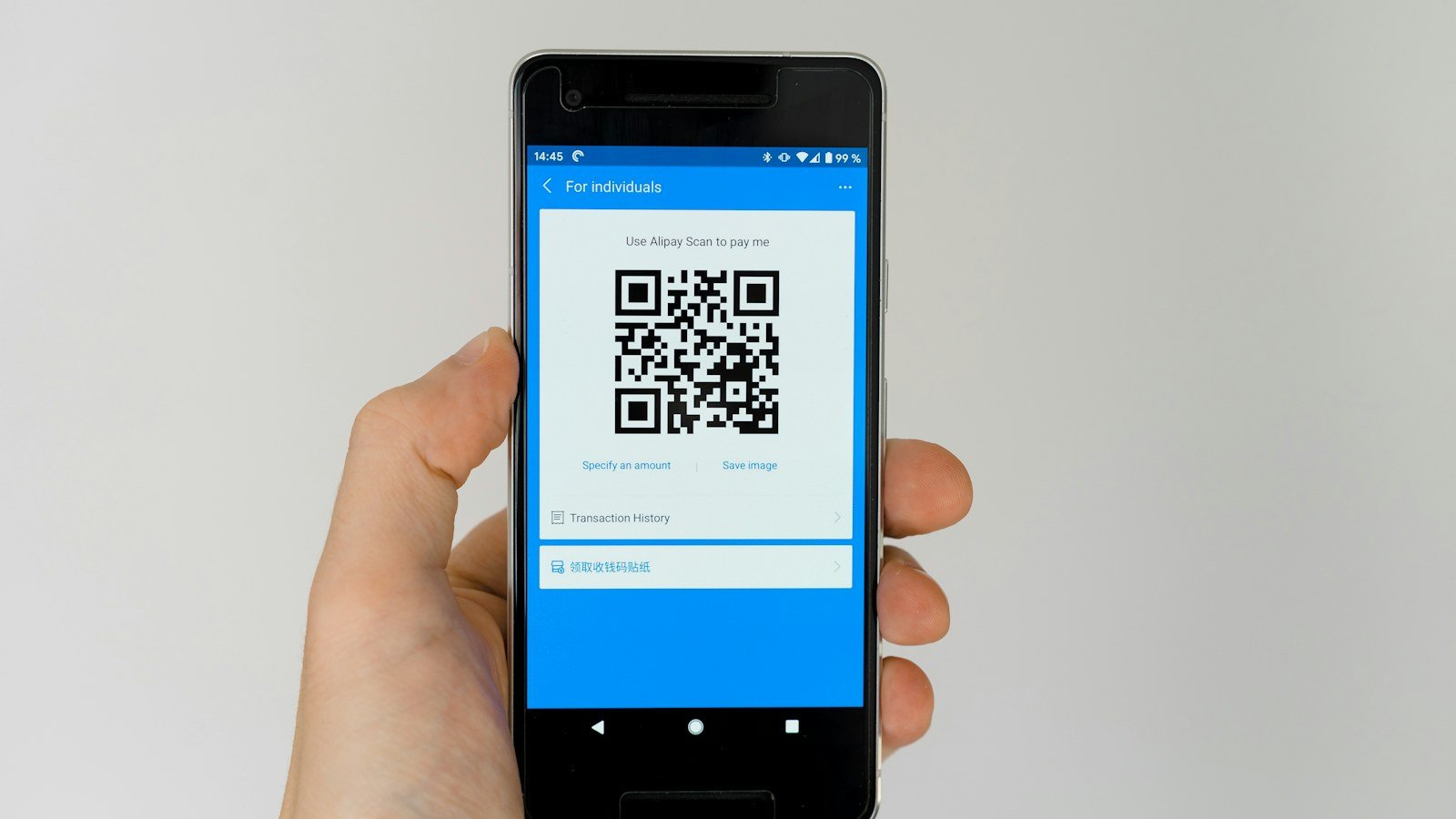
A passkey is a way to sign in without typing a secret. Instead of a password, your device holds a cryptographic key made for one specific website. When you sign in, the site sends a challenge, your device signs it after you unlock it with a fingerprint, your face or a PIN, and the site checks the signature. Nothing reusable is ever typed, sent or stored on the server. For a small team, that removes the most common way accounts get taken over.
Why passkeys resist phishing
Passwords and one-time codes share a weakness: a person can be tricked into typing them into a fake page. A passkey is bound to the real site's address. If a phishing page on a look-alike domain asks for it, the device simply has no passkey for that domain and offers nothing. There is no code to read out, no password to reuse, and nothing useful for an attacker to steal from the server, because the server only holds the public half of the key.
Where passkeys live
- On a phone or computer, unlocked by Face ID, a fingerprint reader or Windows Hello. Often synced across the same person's devices by their platform account.
- On a hardware security key, such as a USB or NFC key, which is not synced and must be physically present.
Synced passkeys are convenient and recoverable if a phone is lost. Hardware keys are stricter, since the key cannot be copied, and suit administrators and anyone handling highly sensitive matters.
What changes for your team
Signing in gets faster: select the account, touch the sensor, done. The bigger changes are administrative:
- Register at least two. Every person should have a passkey on two devices, or a passkey plus a hardware key, so losing one device does not lock them out.
- Keep a recovery route that is not weaker than the passkey itself. Recovery codes stored offline are better than falling back to email alone.
- Name the keys. "Maria's work laptop" makes removal easy when a device is replaced or lost.
- Remove keys on the day someone leaves or a device goes missing, and end their active sessions.
Passkeys and two-factor authentication
A passkey already combines something you have (the device) with something you are or know (the biometric or PIN), so it can be both a strong sign-in method and a strong second factor. If your team currently uses authenticator codes, passkeys are an upgrade rather than a replacement for the whole programme. Our guide to setting up two-factor authentication for small firms covers the rollout steps, and the same approach applies. Passwords do not vanish overnight either; for accounts that still use them, basic password hygiene still matters.
In Herarx
Under Settings, Security, you can Add Security Key to register a passkey or hardware key (YubiKey, Face ID, Windows Hello and similar). Registered keys can be renamed or removed. The same page lists active sessions with device, IP address and last activity, and can revoke all other sessions, which is the step to take when a device is lost.
A one-week rollout
Day one: the owner and admins register two keys each. Days two to four: everyone else registers, with ten minutes of help available. Day five: check who has not, and follow up individually. Then add "register passkeys" to your onboarding checklist and "remove keys" to your leaver checklist, and it stays done.