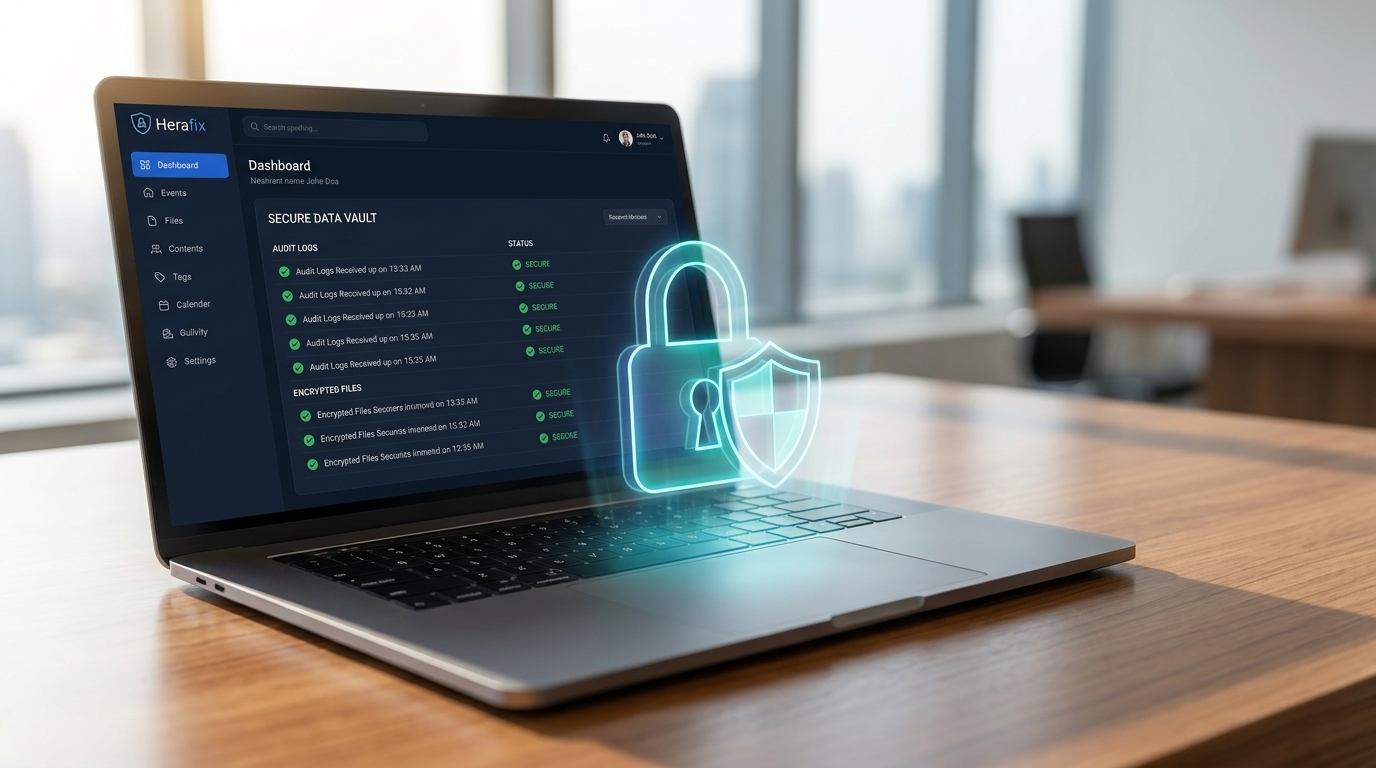
Why Account Security Matters
Your Herarx account holds sensitive casework, confidential files, and client information you cannot afford to lose — or expose. A strong password is a good start, but it is no longer enough. Credential breaches happen every day, and a leaked password alone can hand an attacker full access to everything you have stored.
The most effective thing you can do right now is enable two-factor authentication (2FA). It takes under two minutes to set up and immediately makes your account exponentially harder to compromise.
What Is Two-Factor Authentication?
Two-factor authentication adds a second check at login. Even if someone knows your password, they cannot get in without also having access to your authenticator app or physical security key. That second factor is something only you have — your phone, or a hardware device in your pocket.
Think of it as a deadbolt on top of your door lock.
How to Enable 2FA on Herarx
- Log in to your Herarx account.
- Navigate to Settings, then open the Security tab.
- Under Two-Factor Authentication, click Enable.
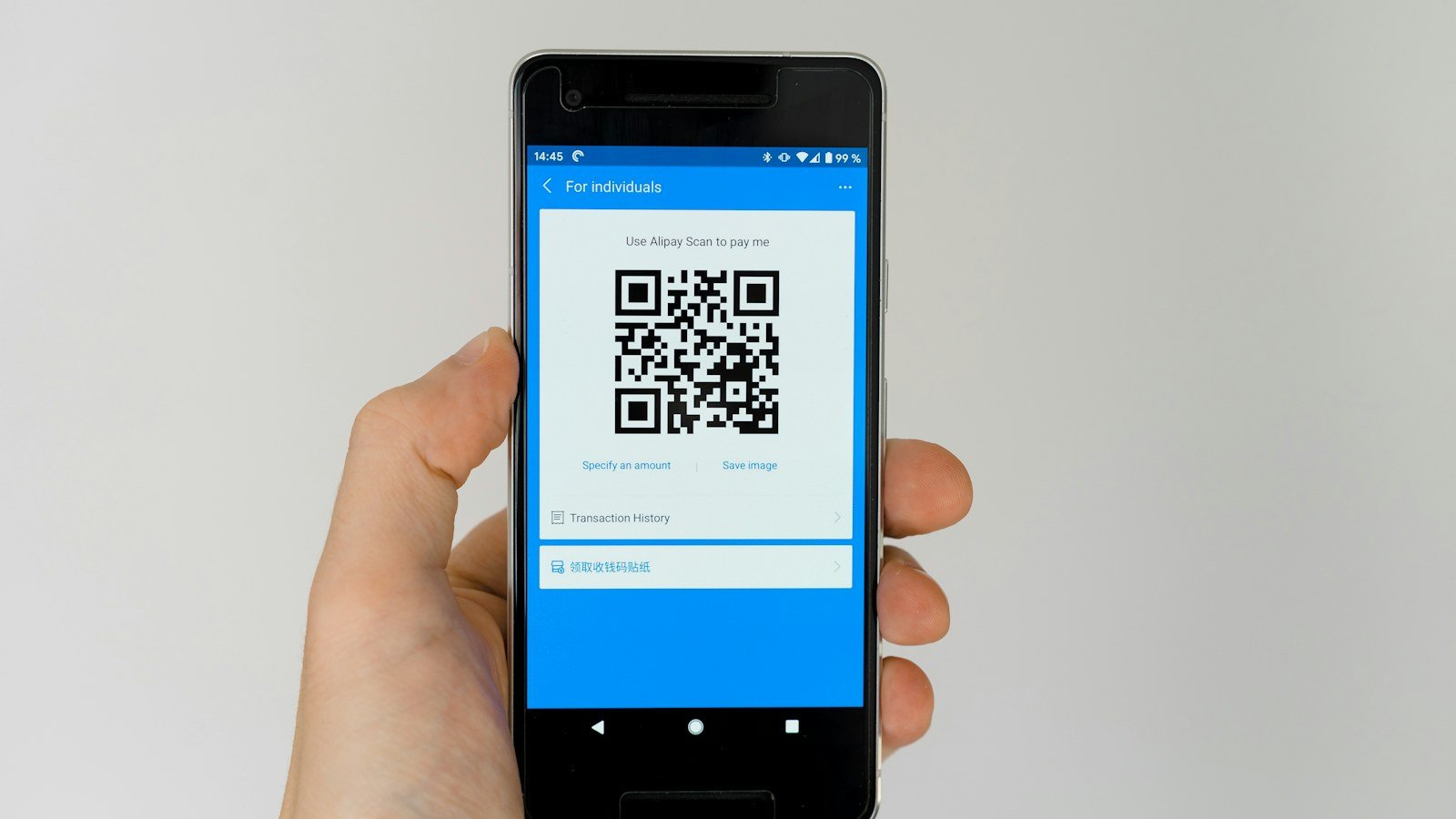
- Scan the QR code with any authenticator app — Google Authenticator, Authy, and 1Password all work perfectly.
- Enter the six-digit code to confirm the setup.
From that point forward, every login will ask for a code from your authenticator app in addition to your password.
Going Further: Add a Security Key
For the highest level of protection, Herarx also supports hardware security keys — physical devices such as a YubiKey that you tap or plug in to verify your identity. Security keys are phishing-resistant by design: even a convincing fake login page cannot steal a key-based authentication because the key cryptographically binds itself to the real domain.
To add a security key:
- Go to Settings → Security.
- Scroll to Security Keys and click Add Security Key.
- Follow the on-screen prompt and tap or insert your key when asked.
- Give it a name (for example, YubiKey — office) so you can identify it later.
You can register multiple keys — a good habit is to keep one as a backup stored somewhere safe, in case your primary key is ever lost.
Which Should You Use?
Both options are far better than nothing. If you already own a hardware key, use it as your primary method and keep your authenticator app as a fallback. If you are just getting started, enabling the authenticator app today is the right first move — you can always add a hardware key later.
Set It Up Today
Security is only useful when it is actually turned on. Head to Settings → Security now, enable two-factor authentication, and consider pairing it with a security key. It is the single most impactful step you can take to protect the cases and files your clients trust you with.